iRobot Roomba Warranty and Support Guide: What’s Covered and for How Long
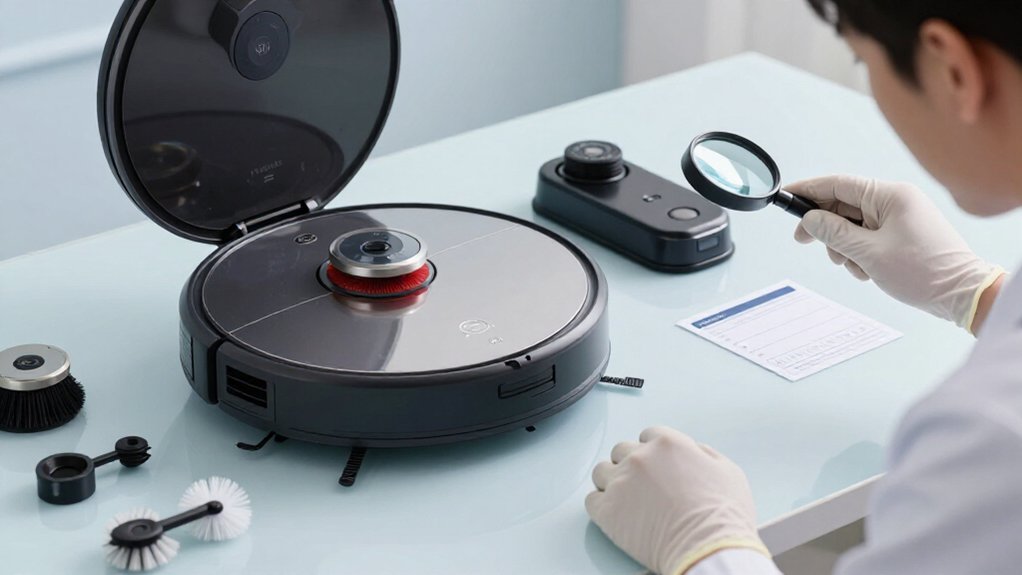
You’ll usually get one year of limited coverage for a new Roomba, while refurbished models receive six months; some 2026 models may offer two years, so check your documentation. Coverage addresses defects in materials and workmanship, but excludes normal-wear items such as filters, brushes, bags, and pads.
Keep proof of purchase and contact iRobot Support for defective units, repairs, or replacements.
Protect+ extends support after the warranty; details below explain eligibility, claims, and refunds.
Roomba Warranty Duration
Roomba warranty duration depends on the model year and whether the robot is new or refurbished: 2026 models typically include a two-year repair warranty covering the battery, 2025 models generally include one year of coverage, and refurbished models usually carry a six-month warranty.
Before planning service, identify your robot’s model year and confirm whether you bought it new or refurbished, because those details determine the applicable term. Check the documentation for your specific product rather than assuming every Roomba follows the same timeline. Keep your proof of purchase accessible, since you’ll need it to request service.
Also, iRobot Protect+ may begin only after the original warranty ends, so verify the handoff date before arranging support. You can then contact iRobot with confidence for help.
Standard One-Year Coverage
Once you’ve confirmed that your robot falls under the standard policy, you’ll generally receive one year of limited manufacturer coverage from the purchase date, or the delivery date when applicable.
This coverage applies to defects in materials and workmanship affecting the Roomba and, where applicable, its battery. It generally applies only when you bought the robot from iRobot or an authorized seller, and it’s limited to the country of purchase. Keep proof of purchase, since it helps confirm your coverage dates.
Normal wear isn’t covered, including filters, brushes, bags, pads, or cleaning solutions. Damage from accidents, misuse, neglect, water, fire, unauthorized modifications, non-approved accessories, or ignored instructions can also fall outside the warranty. Refurbished units may have different terms; check your local policy for exceptions.
Handling a Defective Roomba
If your Roomba is defective, contact the iRobot Support Center to start a claim and follow its experts’ troubleshooting and service instructions. Have your proof of purchase ready; support needs it to process a repair or service request. If the battery no longer holds a charge under iRobot’s guidelines, replacement may be available when your coverage includes batteries.
| Situation | What you should do |
|---|---|
| Repair or replacement | Return the Roomba as directed; iRobot may provide a new or certified refurbished unit. |
| Protect+ repair | Covered repairs or replacements include free shipping to and from your home. |
Pack the robot carefully and describe symptoms accurately. Don’t attempt unauthorized repairs or modifications, because they can affect coverage. Support will explain next steps, including return instructions and evaluation timing.
Protect Plan Eligibility Rules
You can purchase Protect+ only for eligible iRobot robot models that remain within their original manufacturer’s warranty period. The plan is available only in the United States and District of Columbia, not in U.S. territories or Canada.
If you’re an existing owner, you’ll typically need to buy Protect+ within about 30 days of registering your robot.
Eligible iRobot Products
For Protect+, eligibility is limited to eligible Roomba models purchased in the United States or Washington, D.C.; the plan isn’t offered in U.S. territories or Canada.
The question is whether your robot qualifies, not simply whether it carries the Roomba name. Protect+ generally covers eligible robot models while they’re still within the manufacturer’s warranty period, typically the limited one-year warranty. Before you buy, complete iRobot’s eligibility check for your model and confirm its warranty status.
If you already own the robot, you can still check eligibility and extend protection after iRobot confirms it qualifies. You generally need to purchase Protect+ within 30 days of registering your eligible product. Keep registration details available, since iRobot may use them to verify eligibility before you complete checkout.
Regional Availability Limits
Protect+ availability is limited to eligible Roomba models purchased in the United States or Washington, D.C.; iRobot doesn’t offer the plan in U.S. territories or Canada. Your location at purchase matters because iRobot generally ties protection eligibility to the market where you bought the robot. A purchase from another country or territory may *thus* leave you unable to enroll, even if the same model is sold in the United States.
You’ll also need an eligible model that remains within its original manufacturer’s warranty. If you already own a Roomba, you can check its eligibility before seeking extended protection. This check helps confirm that both your robot and purchase region qualify. Review U.S. eligibility details for your specific model; availability may differ elsewhere by region.
Plan Purchase Requirements
To qualify, your Roomba must be an eligible model that’s still within its original manufacturer’s warranty, and you’ll generally need to purchase the Protect Plan within about 30 days of registering the robot.
Before you buy, confirm your model’s eligibility and warranty status with iRobot. The plan is available only in the United States and District of Columbia; it isn’t offered in U.S. territories or Canada. You’ll need to meet the purchase window, and iRobot may verify registration and warranty details before enrollment.
Coverage starts after your original warranty ends, not when you buy the plan. If your warranty has expired, your Roomba isn’t eligible, or you miss the enrollment period, you generally can’t add the plan. Check terms before paying; rules may change.
Serial Number Verification
Find your Roomba’s serial number by removing the bin, turning the robot over, and checking where the bin was attached. Enter it in the serial number field, then select ValidateSkip to verify your product details and confirm whether the model matches.
If it doesn’t match, choose the correct model or wait for an email with next steps.
Locate Your Serial Number
Need to verify your Roomba’s serial number? Remove the robot’s bin, then turn the robot over. With the bin out of the way, inspect the area where the bin was located. You’ll find the serial number printed there.
Record each letter and number exactly as shown, including zeros, dashes, or characters. A photo can help you avoid transcription errors.
When a warranty, support, eligibility, or trade-in process asks for this information, enter the number in the field labeled “Serial number.” Some forms describe the field as optional, with wording such as, “Please enter the serial number of your trade-in (OPTIONAL).” Even if it’s optional, provide it when you have the number.
Double-check your entry before submitting. If you enter incorrect model or serial information, you may receive an email explaining next steps.
Verify Product Details
Before confirming, compare the listed model carefully with your robot so you verify the correct product. If you select “Yes,” you agree to the Privacy Policy and Trade In Terms & Conditions.
This confirmation connects your serial number with the appropriate product record for support and warranty information. If the submitted model doesn’t match the condition described, you’ll receive an email with next steps shortly.
Resolve Verification Issues
When you confirm the model, review the agreement prompt: selecting “Yes” means you agree to iRobot’s Privacy Policy and Trade-In Terms & Conditions. If verification still fails, recheck the number and contact support.
Protect+ Contract ID Process
After you purchase an iRobot Protect+ Plan, you’ll receive a confirmation email with your contract ID, coverage dates, plan term, and product details. Save this email or print it for your records. Your contract ID identifies your Protect+ agreement and helps Support Center representatives locate your coverage when you need assistance or file a claim.
Protect+ coverage begins after your manufacturer’s warranty ends and continues through the term you selected. Have your contract ID and confirmation email ready when contacting support. If the email doesn’t arrive, check your spam or junk folder and verify the address used at checkout. Still can’t find it? Contact iRobot Support and ask for your Protect+ contract ID details. Accessible records can simplify coverage questions and future claim support.
Protect+ Cancellation Refund Rules
Your Protect+ plan includes a 60-day money-back guarantee, so you can request a full refund for any reason within 60 days of the Protect+ purchase date, not from the date your Roomba’s manufacturer warranty ends.
To cancel, contact iRobot Support and provide the Protect+ contract ID from your confirmation email. If you don’t receive it, ask Support to resolve the missing ID before requesting a refund. The guarantee applies only to eligible purchases in the United States and Washington, D.C.; U.S. territories aren’t covered.
Check your purchase date carefully: waiting until your Roomba’s manufacturer warranty expires can put you outside the refund window. Keep cancellation records until iRobot confirms your refund. Once 60 days pass, contact Support if you’re unsure about your deadline for cancellation.
Consumable-Part Exclusions Mistakenly Assumed Covered
Protect+ doesn’t turn routine-wear items into covered parts: brushes, filters, and similar consumables generally aren’t eligible for replacement simply because they’ve worn out through normal use.
You may have coverage for a battery when it no longer holds a charge according to iRobot’s guidelines, because that failure uses a performance standard. That exception doesn’t extend to parts that gradually deteriorate as you clean.
- Brushes and rollers can lose effectiveness from ordinary contact with floors.
- Filters can collect debris and require routine replacement.
- Other wear items may remain your responsibility, even while a defect or power-surge failure qualifies elsewhere.
Before you assume a consumable qualifies, check the part with iRobot Support. Ask whether the issue reflects normal wear or a covered defect. Keep in mind that Protect+ and the manufacturer warranty generally address mechanical or electrical failures, not maintenance supplies. Coverage terms and eligible models can vary, so verify the policy.
File a Protect+ Claim
To file a Protect+ claim, contact the Protect Plan Support Center, where a support team will guide you through each step. Have your Protect+ contract ID ready. It appears in your confirmation email and shows your coverage dates and plan term. If you can’t find that email, contact iRobot Support for help before proceeding.
Your Protect+ plan generally applies after the manufacturer’s warranty ends and continues through the plan term. You can file for covered mechanical or electrical failures, battery replacement when the battery no longer holds a charge according to manufacturer guidelines, or covered accidental damage, including drops, spills, and pet-related mishaps. Approved repairs or replacements may include free shipping to and from your home. Follow the team’s instructions and provide requested details.
Conclusion
Knowing your Roomba’s warranty terms helps you get support without delays. You’ll receive standard one-year coverage, but you must verify the serial number and follow the correct process for defects.
If you’re eligible for Protect+, keep your contract ID handy, review cancellation and refund rules, and file claims through the proper channel. Don’t assume consumable parts qualify. When you understand what’s covered and for how long, you can resolve problems faster and protect your investment.