How to Find Your Robot Vacuum Model Number
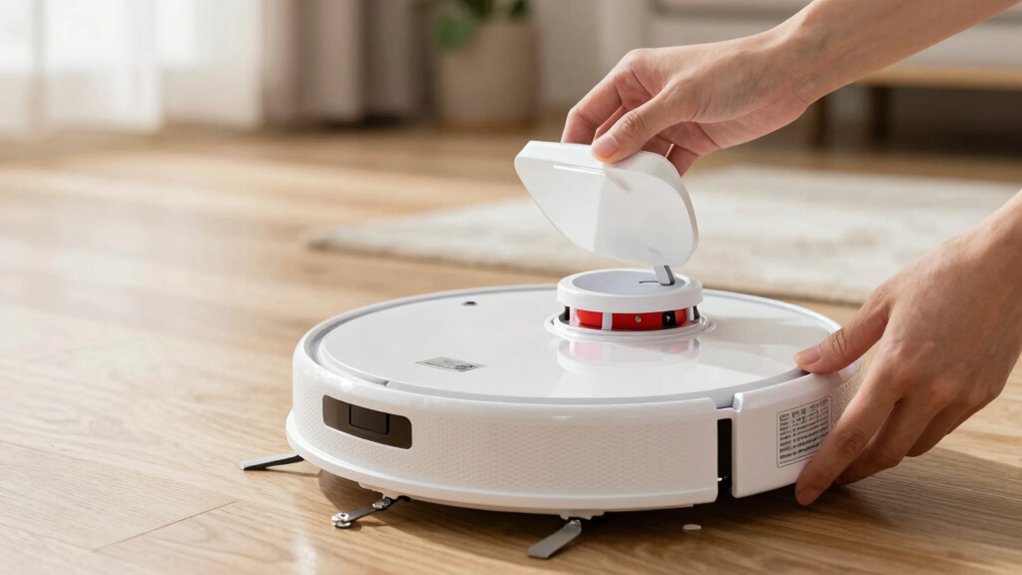
Turn your robot over and look near the left wheel or under the dust bin for a small sticker with the model and serial number. Use good light or a flashlight to read the tiny print. If you’ve paired it, open the iRobot HOME app, go to Product Settings and tap About to see model and serial details.
Note the series (e.g., 500, 900, i) before ordering parts or support. Keep the numbers handy; more tips follow.
Quick Overview
- Flip the robot over and inspect near the left wheel or undercarriage for a printed model number label.
- Remove the dust bin and check the bin housing and surrounding area for an additional model or series label.
- Open the manufacturer’s app (e.g., iRobot HOME) and go to Product Settings: About to view model and serial details.
- Enter the serial number on the manufacturer’s support/lookup page or contact support to map serial to the exact model.
- Use the model’s first characters (e.g., 5xx → 500 Series, 9xx → 900 Series, i7 → i Series) to confirm parts compatibility.
Quick Answer: Find Your Roomba Model Number Now
Need your Roomba’s model number fast? Turn the robot over and check near the left wheel on the underside. That label shows the model number and series. You’ll see entries like 565 (500 Series), 980 (900 Series), or i7 (i Series). Use that code to confirm accessories compatibility, follow model-specific troubleshooting guidance, and identify the exact robot version.
Once you’ve read the model, note the series mapping so you can match filters, brushes, and batteries correctly. That makes finding battery health metrics and evaluating cleaning performance simpler. Support articles and diagnostics are organized by series.
If you need replacement parts or step-by-step fixes, use the model number to pull the right instructions from iRobot’s knowledge base. Keep the number handy; it speeds support, prevents mismatched purchases, and lets you follow precise guidance for maintenance and performance checks.
Find the Model and Serial Number in the iRobot/Roomba App
Wondering where to find your Roomba’s serial number without flipping it over? Open the iRobot HOME App and go to Product Settings. Tap “About your robot’s name” to reveal device details; the serial number appears under device information. This method works for Roomba models supported by the iRobot HOME App and gives you a quick, reliable way to grab both model and serial numbers from your phone.
If you need secondary verification, you can also check the back of the Roomba for the printed serial number. However, don’t rely on unrelated topic digressions or random chatter for accuracy; use the app first.
Steps summary: open iRobot HOME App → Product Settings → About your robot’s name → read serial and device details. That’s it. The app saves you time and avoids handling the robot, which is handy if it’s under furniture or you’re short on time.
Check the Vacuum: Underside, Bin Area, and Sticker Locations
How do you quickly locate your Roomba’s model number**? Flip the unit for an undercarriage inspection**: many models have the number printed near the left wheel on the underside. Place the Roomba on a soft surface, tilt it, and look along the chassis edge beside the wheel housing.
Next, check bin area visibility. Remove the dust bin and inspect the exposed cavity and surrounding plastic. Roomba 100/1000 and 200/2000 Series often hide the model label where the bin sat. The Plus 400 and Plus 500 Series also reveal the model number once the bin is out. For Max 700 Series Vacuums/Combos, the label typically appears in that same bin area.
Work methodically: remove the bin, then do the undercarriage inspection. Use good light and, if needed, a flashlight to read small print. These two simple checks — bin area visibility and underside inspection — will usually uncover your model number quickly.
If You Only Have a Serial Number: How to Get the Model
Got a serial number but not the model? Use the serial as your key: iRobot’s support tools and Roomba lookup pages can map a serial number to a specific model or series. If the web lookup returns only a series grouping, that’s still useful for model classification and narrows your search.
- Enter the serial into iRobot/Roomba serial lookup on the official support site.
- Contact iRobot customer support and give them the serial for a definitive match.
- Note whether results show a series (e.g., 500/600/800/900/i); this is common for model classification.
- If lookups fail, compare physical features (dust bin position, underside layout, top controls) to documented characteristics for the series you found.
Keep the serial handy whenever you contact support. Series-level identification often precedes a full model name. Use that series to guide parts, manuals, or further verification.
Which Roomba Series Does My Model Belong To?
Where does your Roomba fit in the lineup? The first character of the model number tells you the Series: 5xx models belong to the 500 Series, 9xx to the 900 Series, and lettered models like i7 to the i Series. To find that number, flip the unit and look on the underside near the left wheel. Once you know the Series, you can quickly match parts, support articles, and troubleshooting steps specific to that family.
Series identification prevents costly mistakes. Product pages sometimes use misleading branding that groups different Series together; buying parts without checking Series risks ordering incompatible accessories. Knowing the Series streamlines product lookup and ensures you reference the correct version when seeking filters, brushes, or dock replacements. If your model number’s first character is unclear, compare the full model (e.g., 565 → 500 Series, 980 → 900 Series, i7 → i Series) to official documentation before ordering.
Model Numbers for Braava, Scooba, Dreame, and Xiaomi
Want to confirm which family your mop or robot belongs to? Check Braava serials and Scooba placement first: Braava Jet M models usually hide the serial under the water tank, while Braava Jet (non-M) typically has the serial under the robot between the wheels. Scooba 400 Series reveals its serial after you remove the tank; so inspect that area. For Dreame and Xiaomi, model names can overlap; don’t rely on a serial alone.
- Locate the physical label under the tank or on the underside for Braava and Scooba.
- Open the iRobot or Xiaomi app (Product Settings → About) to cross-check the model shown.
- If the label or app is ambiguous, use the product name, app details, or a token extractor tool to verify the exact model.
- Remember that Mop 2 or similar names may belong to Dreame or other brands; so confirm brand + series before buying parts.
Follow these steps to identify series and avoid compatibility mistakes.
Verify Compatibility Before Buying Parts or Contacting Support
Now that you’ve located the model and serial details for your mop or robot, verify compatibility before buying parts or contacting support to avoid wasted time and money. Use the model number for model verification: it tells you the Series (for example, 565 → 500 Series, 980 → 900 Series, i7 → i Series), which directly affects parts compatibility. Check common label locations — underside near the left wheel or behind the bin — so you quote the exact identifier when searching.
Once you have the model, match it to replacement brushes, filters, batteries, and docking components listed for that Series. Knowing the Series also speeds up finding troubleshooting steps and official resources. If a listing is ambiguous, cross-check with iRobot’s product lookup or support guides to confirm fitment.
Don’t guess based on appearance; mismatched parts can reduce performance or cause damage. Accurate model verification ensures you order correct parts and get efficient help from support.
Troubleshooting and Next Steps: Registration, Support, and Spare Parts
Ready to move forward? Use the model number you found for model verification, accessory compatibility checks, and faster support. Note the series indicator (e.g., 565 → 500 Series, 980 → 900 Series, i7 → i Series) to narrow searches and parts lists quickly.
- Register and warranty: Register the device in the app or on the manufacturer site using model and serial numbers so coverage and service records are correct.
- Contact support: Give model and serial numbers plus where you found the label (underside near left wheel or inside/under the bin) so techs identify your unit precisely.
- Spare parts: Search parts by model number to confirm accessory compatibility. If unsure, match the series indicator or check app Product Settings.
- If model unclear: Open the iRobot HOME/Roomba HOME app, go to Product Settings to view and confirm the model before ordering parts or requesting repairs.
Keeping model and serial numbers handy streamlines troubleshooting and replacement ordering.
Frequently Asked Questions
Can I Find the Model Number on the Original Packaging Only?
Yes, you can often find the model number on the original packaging. Start by checking packaging clues like barcode labels, product stickers, and printed spec panels. Look for a model or “M/N” field near the UPC.
Also, check serial stamps on the box flaps or adhesive labels; they sometimes include both serial and model info. If unclear, compare those codes with the manual or manufacturer support to confirm the exact model.
Does Model Number Affect Warranty Length or Coverage?
Yes, the model number can affect model warranty and repair coverage. You’ll get specific warranty length and terms tied to that model, including what parts and repairs are covered.
Check the manufacturer’s warranty page or your manual using the exact model to confirm exclusions, service centers, and authorized repair options. If you don’t provide the correct model, you risk denied claims or limited repair coverage. Therefore, record it accurately.
Will Aftermarket Parts List Compatible Model Numbers?
Yes, aftermarket parts will often list compatible model numbers so you can check fit before buying. You should compare part numbers, mounting points, and electrical connectors listed in the description.
Don’t rely solely on model name; search for cross-reference charts and user reviews confirming fit. If unsure, contact the seller with your vacuum’s model number and photos. That reduces returns and ensures the aftermarket parts will work correctly.
Can a Refurbished Unit Have a Different Model Sticker?
Yes, a refurbished unit can have a different model sticker. You’ll want to check for branding variations and refurbishment labeling that may replace or update the original sticker. Inspect the serial number, internal PCB labels, and original paperwork to confirm identity.
If stickers differ, contact the seller or manufacturer for verification. Keep records proving refurbishment status to avoid compatibility issues with parts or warranty coverage.
Do Firmware Updates Change the Model Number Displayed?
No, firmware updates usually don’t change the model number display. You’ll see firmware impact in performance, bug fixes, or added features. However, the model number display remains tied to the hardware and factory ID.
If an update alters displayed info, it’s rare and typically intentional: branding or UI changes. You should check the sticker or hardware ID for the definitive model; record the firmware version separately for support.
Conclusion
Now that you know where to look, finding your robot vacuum’s model and serial number is quick. Check the app first. Then flip the unit; look under the dustbin, battery compartment, or near the brush for a sticker.
If you only have a serial number, the manufacturer can map it to a model. Confirm series and compatibility before buying parts or contacting support. Additionally, register your device for easier troubleshooting and warranty help.
You may also like: Filter Compatibility Chart By Series — a related guide worth bookmarking.