Roomba Roller Brush Compatibility Chart by Series
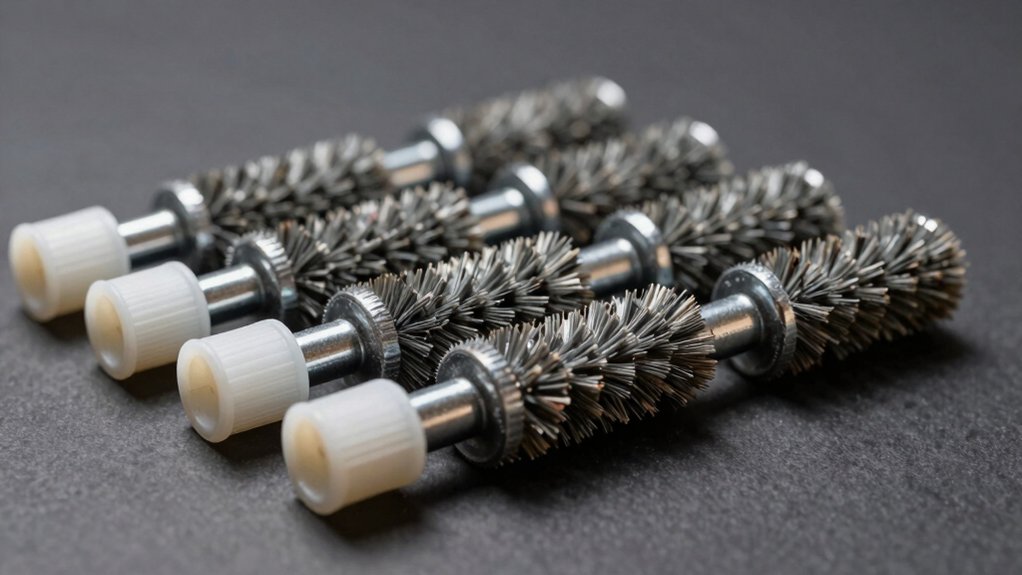
You can quickly match the right Roomba roller brush by checking your model/serial on the underside or in the iRobot app. Then, use the i, e, j and Combo series compatibility groups (i1/i4/i7, j7, E5/E6, I3/I6/I8, Combo 10 Max).
Most of those share the same dual rubber roller assembly and snap-in installation; however, check connector shape, spline count and axle end caps for fit.
Keep going and you’ll find model exceptions, installation steps, and troubleshooting tips.
Quick Overview
- Identify the Roomba series (i, e, j, Combo, or 10 Max) from the unit label or iRobot Home app before matching rollers.
- Most i, e, j, and Combo models share the same dual multi‑surface rubber roller assembly; confirm by model group.
- Use the exact model name plus part number as the primary compatibility rule to avoid axle or end‑cap mismatches.
- Check connector shape, spline count, and axle end caps to ensure the replacement roller physically fits.
- Legacy 4000–8000 series use different roller geometry and often require model‑specific OEM rollers.
Quick TL;DR: Find Your Roomba Roller Brush in 3 Steps
Need a replacement quickly? You’ll find the right Roomba roller brush in three clear steps. First, identify your model series: check the i, e, j, Combo, or 10 Max designation on the unit or app.
Second, confirm brush type: rubber (combo-style) or bristle rollers; the guide flags which series use which material.
Third, verify part numbers or compatibility lists to avoid mistakes. The chart consolidates cross-compatibility data so you can match model name to part number.
This approach busts common compatibility myths by relying on verified lists rather than guesswork. Use model name + part number as your decision rule. Note upgrade considerations only when a different brush material is explicitly supported by your series.
The process reduces time and errors. Model series, brush type, and compatibility indicators give you a precise match every time, so you won’t need trial-and-error purchases.
Quick‑Match Chart: Roller Brushes for E, I, J, and Combo Series
Use this quick‑match chart to instantly find the right dual multi‑surface rubber roller brushes for your Roomba E, I, J, or Combo series (including i1/i4/i7, j7, E5/E6, I3/I6/I8, and Combo 10 Max). The chart maps model groups to the same dual rubber roller assembly used across Roomba i, e, j, and Combo lines. You’ll see direct fits for i1/i1+/i4/i4+/i7/i7+, j7/j7+, E5/E6, I3/I3+/I6+/I8/I8+, and Combo 10 Max.
You’ll get fast, data-driven guidance that highlights compatibility nuances. Some models share identical roller geometry and mounting pegs, while others require the same part but different trim or bearing servicing. The rollers use two synchronized brushes: one to loosen, one to extract. They are designed to hug floors and resist pet‑hair tangles.
Installation is tool‑free: snap bottom open, swap rollers, snap closed. For accuracy, inspect weekly (twice weekly with pets) and clear pegs/bearings to maintain peak cleaning performance.
How to Identify Your Roomba Model & Serial Number Fast
Where can you find the exact model and serial number on your Roomba? Check the underside label or the user manual first: the series and model (i.e., j, s, i7, i3, etc.) appear as “Model: 6750” or similar. The serial number is often near the power switch; inside the battery compartment; or on the original packaging/receipt. It’s an alphanumeric string you’ll need for precise parts matching.
If the robot’s connected, open the iRobot Home app and tap Settings > About (or About Your Roomba) to display model and serial number instantly. For fast physical checks, peek under the bottom cover or around the battery/charger area where tags are commonly placed.
Always record both model and serial before ordering brushes: this helps you identify battery safety notes tied to specific batches. It also avoids warranty impact from installing incompatible parts. Cross-check these IDs against the compatibility chart for an exact match.
Connector Types, Spline Counts, and Axle Changes to Check
How do you know whether a replacement roller will actually engage your Roomba’s drive? You check connector types, spline counts, and axle changes precisely. Compatibility pitfalls often come from a single mismatched ridge or end cap. Verify model family, series, and manufacture year; compare brush geometry and spline profile to the original. Axle diameter, end-cap style, and bearing seating determine whether the roller fits the cleaning head or needs adapters.
| Feature | What to check | Why it matters |
|---|---|---|
| Connector type | Shape and latch orientation | Prevents installation failure |
| Spline count | Number of shaft ridges | Ensures gear engagement |
| Axle config | End cap, diameter, bearings | Affects fit with carts/heads |
| Brush geometry | Length and offset | Impacts brush contact |
| Model match | Series/year/family | Avoids compatibility pitfalls |
Measure components or use OEM cross-reference charts before buying to avoid returns and motor strain.
Legacy Exceptions: 4000–8000 Series and Special Cases
You checked connector types and spline counts, but some older Roomba lines still break the rules. For legacy exceptions, you’ll note that 4000–8000 series models use different roller geometry and aren’t covered by the chart listing I, E, J series and modern I1–I8/J7 generations. These special cases often require model-specific rubber rollers or OEM parts because their axle spacing and end caps differ.
You’ll still find overlap: Roomba Combo and Roomba i/e/j series, including Roomba Combo 10 Max and E5/E6, accept the dual multi-surface rubber brushes shown in the chart; they’re designed to hug floors and resist pet hair tangles.
When dealing with 4000–8000 series or any ambiguous model, treat it as a special case. Verify part numbers or consult manufacturer specs rather than assuming compatibility. Inspect brushes weekly, and twice weekly for pets, to confirm performance and detect incompatible wear patterns early.
How to Install and Replace Roller Brushes (Step‑by‑Step)
A quick, safe swap keeps suction and floor contact at peak: open the cleaning head module, lift out the old rollers, align the new dual-multisurface rubber brushes with the axle slots and end caps, then press each side until it snaps into place. You’ll find these replacement rollers fit a wide range (I, E, J series including i1, i1+, i4, i7, j7, E5, E6, I6+, I3, I8, I8+); note compatibility nuances if you have an older model.
Inspect bearings and pegs, remove hair and debris, then reassemble.
- Weekly check for normal homes; twice weekly with pets.
- Keep spare brushes on hand; replacement frequency depends on dirt load.
- Clean under gray bearings and pegs before reinstalling.
Follow installation tips: use firm, even pressure until you hear the click; test a short run to confirm contact. These steps preserve brush life, reduce tangles, and maintain consistent cleaning efficiency across compatible Roomba series.
Troubleshooting Fit and Performance After Replacement
Not getting a snug click or seeing poor pickup after swapping rollers? First, confirm you installed the correct dual multi-surface rubber brushes for your series/model (I, E, J series; i1, i1+, i4, i4+, i7, i7+, j7, j7+, E5, E6, I6+, I3, I3+, I8, I8+).
Troubleshooting fit: reopen the bottom snap, remove rollers and inspect gray bearings and pegs for hair or debris. A hair-wrapped peg prevents full seating. Clear debris, reinsert bearings ensuring they rotate freely and the path is unobstructed. Then snap closed until you hear a firm click.
For post-replacement performance: run a short test on multiple floor types. If pickup is weak, check that one brush can loosen and the other can pull debris; misaligned brushes reduce efficiency. If issues persist, verify rollers are genuine replacements and that maintenance intervals were followed. Heavy wear or missed weekly cleaning (twice-weekly with pets) can mimic fit problems.
Frequently Asked Questions
Can I Use Non‑Oem Roller Brushes Without Voiding Warranty?
Yes, you can often use non-OEM roller brushes, but it depends. You’ll want to check manufacturer terms because non-OEM concerns may include fit, performance, increased wear, and debris buildup. Those issues can create warranty impact if damage is traced to aftermarket parts.
To be safe, document compatibility, keep original parts, and contact support; that data-driven approach minimizes risk and helps resolve any disputes quickly.
How Often Should I Replace Brushes With Heavy Pet Use?
You should replace brushes every 3–6 months with heavy pet wear. Check brushes monthly for hair buildup, fraying, or reduced suction. Heavy shedding pushes replacement toward 3 months; light shedding toward 6. Track runtime hours and clean brushes after every few runs to extend life.
Keep spare brushes on hand and log replacements to spot trends. Data-driven replacement frequency minimizes downtime and maintains optimal cleaning performance.
Are Colored (Aftermarket) Brushes Less Effective Than Originals?
Generally, no; colored brushes aren’t inherently less effective, but aftermarket performance can vary. You’ll find some third-party colored brushes match OEM materials and brush geometry, delivering similar pickup and wear rates. Others use cheaper bristles or imprecise tolerances, reducing cleaning efficiency and lifespan.
Check user tests, material specs, and return policies. If you need consistent results, choose reputable brands or stick with OEM replacements backed by test data.
Do Firmware Updates Affect Brush Compatibility?
Yes, firmware updates can affect compatibility. You’ll notice firmware impact when new software changes motor control, brush speed, or part-recognition routines. This can make aftermarket brushes behave differently or stop working.
Check update notes and manufacturer guidance; some vendors state warranty exceptions if you use third-party parts after updates. Track version numbers, test brushes after updates, and keep receipts so you can document issues for support or warranty claims.
Can I Mix Brush Types From Different Series in One Robot?
Yes, you can mix brushes, but compatibility concerns matter. You’ll often fit different-series rollers physically; however, motor, sensor fit, and firmware can affect performance.
Check model-specific part numbers and mounting tabs. Measure brush length and shaft size, and review iRobot documentation or parts databases. If brushes don’t seat or spin freely, you’ll see reduced cleaning or errors.
Use verified replacements to avoid wear and voiding warranties.
Conclusion
You’ve now got the key facts to pick the right Roomba roller brush fast. Use the quick‑match chart, confirm your model/serial, and check connector type and spline count before buying.
Remember legacy exceptions (4000–8000 series) and axle variations that affect fit. Install carefully, following the step‑by‑step guide. Then run simple tests to confirm performance.
If issues persist, recheck compatibility or contact support with your model and serial for precise help.