Auto-Empty Dock Not Emptying Bin Troubleshooting
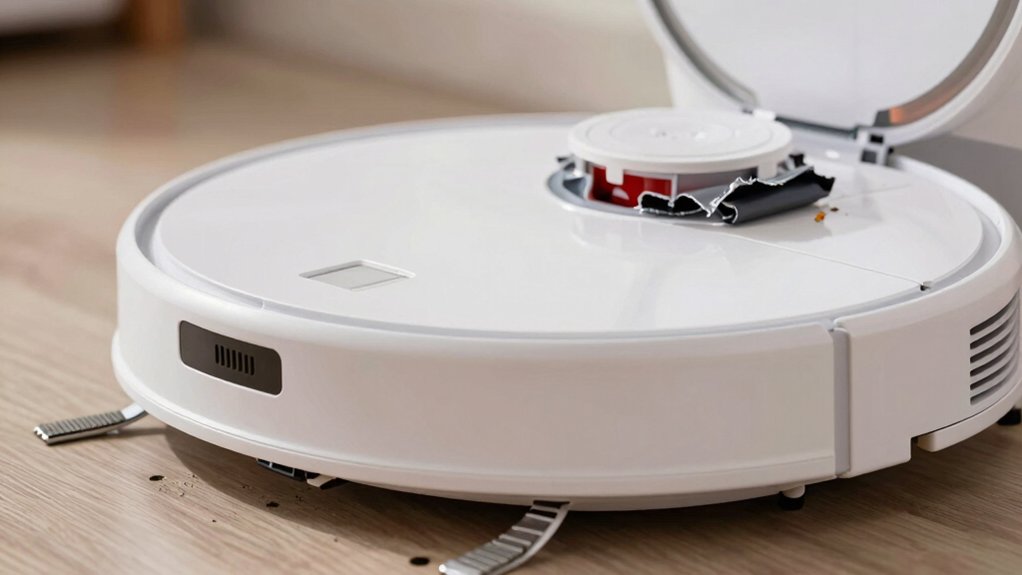
If your Auto-Empty Dock isn’t evacuating, first ensure the dock has power. Auto-Empty is enabled in the app, and the dust bag and lid are seated and not full. Confirm you’re using the Auto-Empty dustbin and matching evac port.
Then check the dock inlet and robot dust inlet for debris or misaligned covers.
Reboot the dock and robot. Trigger an evacuation and clear any visible clogs. Keep going for step-by-step inspection and fixes if it still won’t empty.
Quick Overview
- Confirm Auto-Empty is enabled in the app, and the robot is correctly docked against a powered, compatible Auto‑Empty Dock.
- Verify the dock’s dust bag is seated, not full, and the dock lid and dust container cover are fully closed and sealed.
- Inspect the dock’s evacuation port and Evac Port adapter for debris, packing tape, or stickers blocking airflow.
- Remove the air inlet cover and trace the duct from inlet to port, clearing blockages and ensuring the duct is seated and undamaged.
- Reboot the dock and robot; trigger an evacuation. If the problem persists, contact iRobot Support with the model and steps performed.
Quick Checks to Try First (Power, App, Dock Lid/Bag)
Wondering why your Auto‑Empty Dock isn’t emptying? Start with basic auto empty troubleshooting steps you can complete in minutes. First, confirm Auto‑Empty is enabled in the app; the dock won’t trigger if that setting’s off. Next, verify the dock has power and the outlet supplies normal current: test with another device or a multimeter. Check dock compatibility with your robot model; mismatched docks may power but not communicate correctly.
Inspect the dust bag: ensure it’s seated properly and not full, since a clogged or missing bag blocks evacuation. Make sure the dock lid and dust container cover are fully closed and sealed. Sensors often prevent operation if parts aren’t latched. Finally, confirm the robot docks with correct alignment and completes a cleaning cycle before attempting to empty. These focused checks rule out the most common issues before deeper diagnostics.
Confirm Auto‑Empty Dustbin and Evacuation Port
How well the dock can empty depends on the correct dustbin and a clear evacuation path. So first confirm you’ve installed the Auto‑Empty Dustbin (not the standard bin) and that its Evac Port matches your dock model. Verify the Evac Port is present, undamaged, and free of debris, tape, packing materials or protective stickers that could block flow.
Make sure the bin’s lid or cover seals and any disposable bag is installed and not full; a poor seal or full bag prevents evacuation. Confirm the dock is powered and receiving sufficient electrical supply. Then dock the robot and check alignment so the port engages the bin precisely. Reposition the robot if engagement is off by millimeters.
Avoid wasting time on irrelevant topics or unrelated concepts; focus on port compatibility, physical obstructions, seal integrity, bag capacity, and mechanical alignment. If all checks pass and the dock still won’t evacuate, escalate to diagnostic tests or manufacturer support.
Inspect Auto‑Empty Inlet and Air Duct
Start by removing the cover plate over the air inlet beside the auto-empty dustbin so you can directly inspect the inlet and air duct for obstructions. With the plate off, visually and manually inspect the auto empty inlet pathway for debris, hair, or compacted dust that could restrict flow. Use a flashlight and a narrow brush or compressed air to dislodge and remove any buildup; avoid pushing debris deeper into the duct.
After clearing visible blockages, trace the air duct connection from the inlet to the dock’s evacuation port. Confirm the duct is seated, undamaged, and free of kinks or collapse that would reduce suction. If you find remaining clogs, clear them completely and recheck airflow by briefly running a dock cycle or using a small airflow tester if available.
Reinstall the cover plate in its original position. Ensure a snug fit to maintain proper inlet alignment and unobstructed air duct performance during auto-emptying.
Check Robot Brush Cover and Dust Inlet
Want to confirm the robot’s brush cover and dust inlet aren’t blocking suction? Turn the robot over, remove the main brush cover, and check that all four cover tabs align and sit fully into their slots behind the cover. When correctly installed, the tabs will be hidden. Then, inspect the dust inlet for hair, compacted dust, or debris and clear any obstructions before securely reinstalling the brush cover and the air inlet plate.
After removing the air inlet plate next to the auto-empty dustbin, verify there’s no lint or packed debris inside the inlet or surrounding cavity. Use a soft brush or compressed air to dislodge material; avoid sharp tools that could damage seals. Confirm the main brush cover tabs seat flush in their installation slots so the cover can form a tight mating surface with the chassis.
Reinstall the brush cover and air inlet plate, pressing until you feel or hear the tabs click. Proper seating of the brush cover and a clear dust inlet restore the airflow path into the auto-empty system.
Reboot, Force an Evacuation, and When to Contact Support
Troubleshooting a persistent non-emptying dock often starts with simple power and software resets. Unplug the Auto-Empty Dock for a few seconds to reboot its motor and sensors. Then reconnect and reboot the robot (via the app or the robot’s reset sequence) and watch for the white clockwise swirl indicating a proper reboot.
Follow a clear reboot procedure: power-cycle the dock; then issue the robot reboot from the app or hold the onboard reset sequence. Once both devices are rebooted, perform evacuation steps: place the robot on the dock and trigger “Empty Bin” in the app or use the robot’s manual evac button if available. If the dock doesn’t evacuate, remove the robot and inspect and clear clogs or debris from the evacuation port. Then redock and retry the forced evacuation.
If repeated reboot procedures, inspection, and evacuation steps fail, contact iRobot Support. Provide your robot model (e.g., 1P3251UKT), serial number, and a concise summary of the troubleshooting steps you’ve completed.
Frequently Asked Questions
Can Low Temperatures Prevent the Dock From Emptying the Bin?
Yes, low temperatures can prevent the dock from emptying the bin. You’ll see reduced suction or clogs if moisture freezes or becomes viscous. Mechanical seals or motors may behave sluggishly.
Check for firmware and software updates that address temperature-related behaviors. Then relocate the dock to a warmer spot. If problems persist after updates, inspect seals, hoses, and the base motor for ice or damage and run diagnostics.
Does Pet Hair Clogging the Base Sensors Stop Auto-Emptying?
Yes, pet hair can clog the base sensors and stop auto-emptying. You should inspect and clean sensor areas regularly, using compressed air or a soft brush to remove trapped hair.
Power off the dock before maintenance to avoid damage. After cleaning, run a test empty cycle and check for error codes. If issues persist, examine tubing and seals for blockages or contact support for targeted diagnostics and replacement parts.
Can Software Updates Change Auto-Empty Schedules?
Yes, software updates can change auto-empty schedules. You’ll see modifications when firmware alters timing logic, adds theoretical compatibility with new dock models, or refines scheduling algorithms.
Updates usually include user notification via app alerts or changelogs; so you’ll know what changed. If a schedule shifts unexpectedly, check update history, confirm device-dock compatibility, and restore or reconfigure schedules in the app. Contact support if behavior persists.
Will Using Non‑Oem Dust Bags Affect Emptying Performance?
Yes, using non-OEM dust bags can reduce emptying performance. You’ll see fit issues, weaker seals, or higher resistance that block airflow and trigger incomplete transfer.
While this might seem like a non-relevant topic to warranty concerns, it’s not an unrelated concern for suction and clogging. Test each third-party bag: check fit, seal integrity, and particle retention.
Replace with OEM parts if you detect leaks or repeated failures.
Do Wi‑Fi Interruptions Prevent the Dock From Initiating Evacuation?
Yes, intermittent Wi-Fi interruptions can stop the dock from starting evacuation. You should run Wi-Fi diagnostics to confirm connectivity and rule out network drops.
Check your router, signal strength, and device isolation settings. Also, verify dust bag compatibility since non-OEM bags can alter pressure or clog sensors, confusing the dock’s control logic.
Fix connectivity and use compatible bags to restore reliable automatic evacuation.
Conclusion
Check the basics first: Power the dock, confirm the app shows the dock connected, and make sure the dock lid or bag isn’t blocking airflow.
Verify the robot’s auto‑empty setting is on and that the evacuation port on the dock lines up with the robot’s inlet. Inspect the inlet, air duct, brush cover, and dust inlet for debris or damage.
Reboot both devices, force an evacuation, and if problems persist, contact support with model and error logs.
You may also like: Dock Not Emptying Decision Tree — a related guide worth bookmarking.