How to Create Room-Specific Cleaning Routines in Robot Vacu…
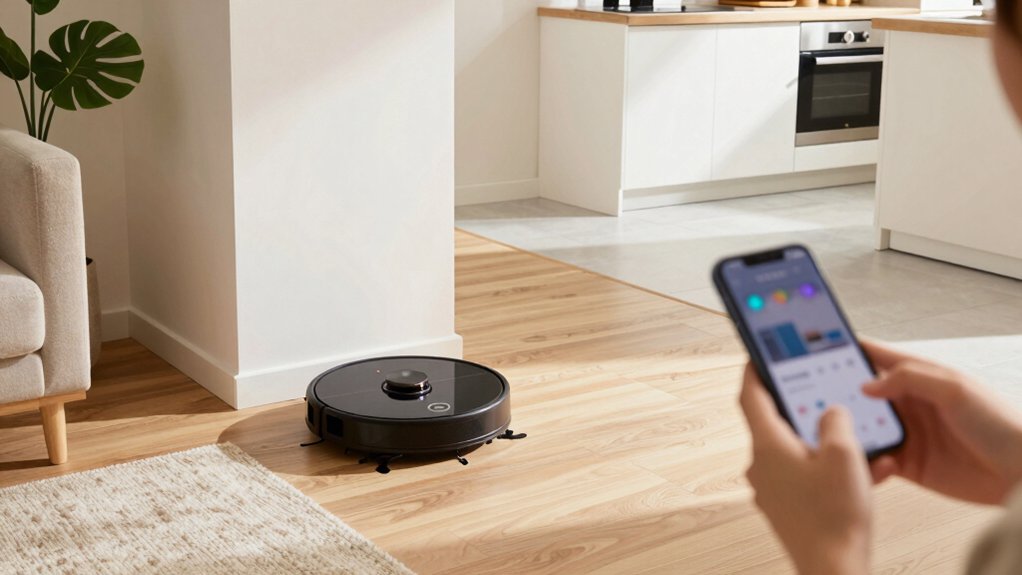
First, link your vacuum in its app and confirm the saved map shows distinct, named rooms.
Open the robot’s menu, then go to Schedules.
Tap Add, set start time and repeat days, then pick the cleaning task.
Use room selection to target only the rooms you want.
Choose route mode and suction power per room, and save.
Verify the schedule appears and run a quick test.
If you want step-by-step tips for edits, conflicts, and troubleshooting, keep going.
Quick Overview
- Link your robot to the app and verify the saved map shows distinct, correctly named rooms.
- Open the robot’s Schedules menu, tap Add, set start time, and choose repeat days.
- Select room-specific cleaning, pick the exact rooms on the map, and confirm selection.
- Choose cleaning mode and appropriate suction power for each room: Max for carpets; lower for hard floors.
- Save the schedule, run a test at the set time, and reverify or edit if rooms or settings are incorrect.
Checklist: Link App and Confirm Maps/Rooms
Before creating room-specific routines, link your robot to the Roborock app and confirm its maps and rooms are correct. Open the app, select your robot (for example, Q5 Pro), tap the three-dot menu in the upper right and choose Schedules. Then verify the device shows the saved map with distinct room names so you can target them when setting a new schedule.
Next, confirm your account shows the vacuum as linked. If it isn’t, connect it before proceeding. Inspect the saved map for missing or merged areas and correct room names in the rooms setup screen so selections match physical spaces. When rooms are accurate, plan your cleaning tasks: decide which rooms need full cleaning, spot clean, or skipped. Note the preferred start times and any sequence dependencies.
Finally, keep a checklist: app linked, map verified, rooms named, task types chosen, start times noted. This ensures you can add precise, room-specific schedules without having to redo mapping or edits later.
Open Schedules and Add a Routine
Ready to create a routine? Open the RoboRock app, pick your robot (like Q5 Pro), then tap the three-dot menu at the top right and choose Schedules. Tap Add to create a new schedule, set the start time (for example, 10:15 AM), and confirm with Okay.
Choose the repeat pattern (example: every day) and pick the cleaning task (example: full cleaning). Optionally, assign specific rooms and adjust mode or suction. Then, save by tapping the checkmark and verify the schedule appears in the list.
| Step | Example |
|---|---|
| Select device | Q5 Pro |
| Start time | 10:15 AM |
| Repeat | Every day |
| Task | Full cleaning |
Keep the process focused: You will avoid mixing two word ideas or unrelated topics in the schedule name. You will confirm each field before saving. This keeps routines predictable, easily editable, and visible in the schedules list.
Choose Rooms, Cleaning Mode, and Suction
Now that your schedule is set, pick the exact rooms, cleaning mode, and suction so the robot cleans the right areas with the right intensity. In the app, open the cleaning task and use room selection to include only the rooms you want: this targets traffic areas without wasting battery on unused spaces.
Next, choose the cleaning mode (for example, standard route) to control the path the robot follows. The right mode ensures thorough coverage and predictable behavior in each room. Then, set the suction power appropriate for the surfaces: Max for carpets and heavy debris; lower settings for hard floors or longer runs. If Max causes battery drain or is too aggressive across the entire floor, lower the suction while keeping the room list unchanged.
Finally, save the configuration so your selected rooms, mode, and suction power are applied every time that room-specific routine runs. Check settings before exiting to avoid accidental whole-home cleans.
Pick Times and Repeat Days Per Room
Want your kitchen cleaned every morning and the living room only on weekends? In the Robo Rock app, open the Schedules menu for your robot and tap to add a new schedule. Set the start time for each room routine (for example, 10:15 AM) and confirm with OK. Choose a repeat pattern per room: every day, weekdays, or specific days so cleaning aligns with traffic and needs.
Assign the cleaning task for that room and pick a mode and suction power that fit; this is crucial for power optimization and preserving battery across mapped areas. Use room mapping to target only the spaces you want at the appointed times.
- Set precise start times for each room and confirm with OK to avoid overlaps.
- Choose repeat days per room to match use patterns (weekends for living room, daily for kitchen).
- Select cleaning mode and suction power per room to balance cleanliness and runtime.
Save, Verify, and Test the Schedule
How will you know the robot will clean the right room at the right time? After saving a new room-specific schedule, open the device’s schedules from the upper right menu and confirm the entry appears for the targeted device. Check the time and repeat pattern exactly; don’t assume defaults; do not assume defaults so you avoid wrong assumptions about AM/PM or weekday repeats.
Run a quick live test by starting the scheduled cleaning at the set time. Observe that the vacuum goes to the intended room(s). If the test fails, immediately re-check room selections, cleaning mode, and power settings. Then, re-save the schedule before testing again.
Periodically reverify saved schedules by reopening the menu and inspecting each entry for unintended edits or scheduling conflicts with other routines or devices. This short verification loop: save, inspect, test, and correct: keeps your room-specific routines reliable and prevents surprises when you expect a clean room.
Manage Routines and Troubleshoot Scheduling Issues
Managing routines and troubleshooting scheduling issues starts with regular checks and quick edits: open the RoboRock app, pick your robot (for example, Q5 Pro), tap the upper-right menu, and choose Schedules to view all routines for that device. From there, you can spot missing or conflicting entries and fix them quickly.
- Review and edit: select a schedule, change the time (e.g., 10:15 AM), set daily repeat, pick target rooms, choose cleaning mode (standard route), and set suction power (Max). Tap the checkmark to save and confirm it appears in the schedules list.
- Resolve conflicts: if two routines overlap, adjust times or disable one. Reopen Schedules, modify time/repeat/mode/power, and re-save to apply changes.
- Verify app integration: ensure your phone and robot are online. Update the RoboRock app firmware and test the schedule so cleaning automation runs reliably.
Frequently Asked Questions
Can I Run Different Routines for Multiple Robots Simultaneously?
Yes, you can run different routines for multiple robots simultaneously on many apps. You’ll open each robot’s routine page, schedule or trigger the specific room-focused routine, and start them together or stagger starts.
Check app settings for concurrent operation limits, network capacity, and map conflicts. If the app lacks native simultaneous routines, use automation or voice-assistant groups to launch both robots at once and monitor their progress.
Will Routines Run if the Robot’s Battery Is Below a Threshold?
Yes, most apps won’t run a routine if there is a battery constraint preventing completion. You’ll see routine prioritization rules: the app checks battery level, current task priority, and whether auto-dock is allowed.
If the battery is below the threshold, the routine will pause or postpone, return to charge, or run a shortened version. You can usually set thresholds and priorities, so routines only start when the robot can finish them.
Can I Pause Routines Remotely Without Deleting Them?
Yes, you can pause routines remotely without deleting them. Use the app’s remote control features to open the scheduled routine, tap Pause or Disable (not Delete), and confirm. The routine stays saved for later.
Some apps let you pause individual room tasks or set a temporary pause duration. Check battery-dependent settings too, since low charge can auto-halt routines.
Resume anytime from the same menu or re-enable the schedule.
Do Virtual Barriers Affect Room-Specific Schedules?
Yes, virtual barriers can affect room-specific schedules if your app uses room segmentation tied to the map. You’ll want to place barriers before assigning schedules so the vacuum recognizes restricted zones. Otherwise, the robot may cross into blocked areas or misattribute segments.
Check that segmentation boundaries remain stable after edits. Test each room schedule once you’ve added barriers to ensure cleaning follows the intended routes and times.
How Do Firmware Updates Affect Saved Routines?
Firmware updates can change firmware compatibility and sometimes force routine migration. You’ll see routines preserved when updates are compatible; the app migrates schedules, room maps, and custom zones automatically.
If compatibility breaks, some routines may reset or require manual recreation. You should back up maps, check release notes for migration steps, and update the app first. If migration fails, restore backups or reassign room-specific schedules manually to avoid lost routines.
Conclusion
You’re all set to make room-specific cleaning routines that fit your home. Link the app, confirm maps and rooms, then create schedules selecting rooms, cleaning modes, suction levels, times, and repeat days per room.
Save each routine, verify the settings, and run a quick test. Manage or tweak routines as needed and use troubleshooting tips for missed or overlapping schedules. With clear routines, your vacuum will clean where and when you want.
You may also like: Vacuums With No-Go Zones For — a related guide worth bookmarking.