Robot Vacuum Mapping and Room Labeling Guide
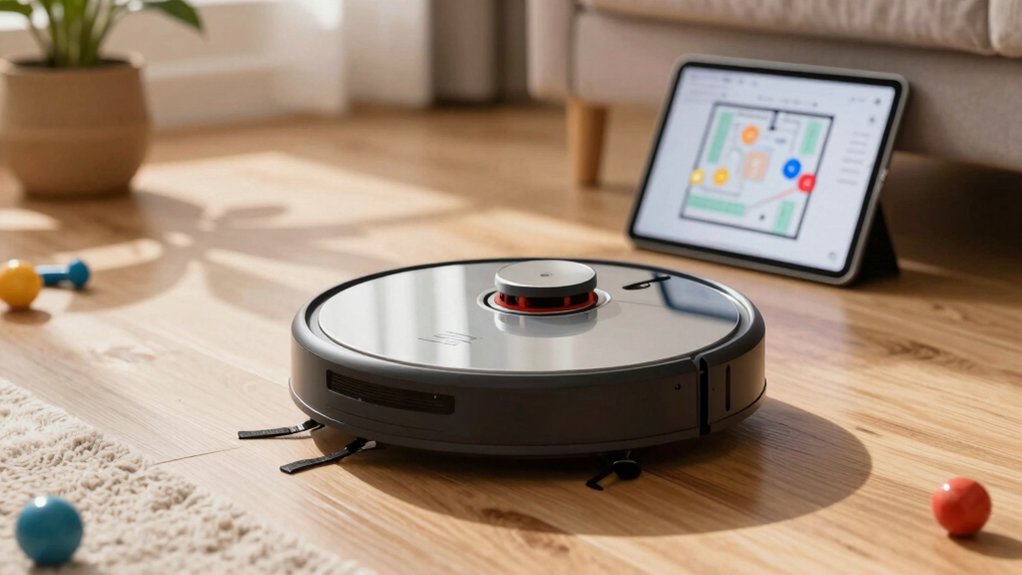
You’ll start by running a quick mapping or full-house clean so the robot learns walls and rooms.
Then, open the Map editor to rotate, save, and name rooms for voice and app control.
Split, merge, or redraw rooms; assign colors; and place No‑Go, Virtual Wall, and No‑Mop zones before saving.
Save separate maps for each floor and reapply zones after edits.
Follow simple troubleshooting and privacy steps to keep maps reliable.
More practical tips follow.
Quick Overview
- Start a full mapping run (Quick Mapping or whole-house clean) to generate a draft map for editing and room labeling.
- Use Edit Map to rotate orientation, split/merge rooms, and redraw dividers. Then, save each change before proceeding.
- Name rooms, assign colors, and save to enable voice commands, targeted cleans, and persistent room labels.
- Place No-Go Zones, Virtual Walls, and No-Mop Areas after editing. Then, save to restrict robot access reliably.
- Save separate maps for additional floors and label each map. Re-run mapping or updates after major layout changes.
Quick Start: Create and Save Your First Smart Map
Ready to map your home quickly? Start Quick Mapping in the robot’s app to generate a basic house outline. Then run a whole-house clean so the robot automatically adds detailed rooms and objects. After that, tap the Map icon, pick the map you want, and choose Edit Map to access room management and zone tools. Use Rotate Map to correct orientation and Save to retain the alignment for reliable future runs.
Edit rooms by tapping any room to Divide Room, Merge Room, or Rename Room. Customize labels and colors so the map matches your actual park layout and traffic flow. Add No-Go Zones or Virtual Walls to block off-restricted areas. Set No-Mop Zones if your model supports a mop accessory. These steps lock in a precise map that improves navigation and boosts cleaning efficiency on every scheduled or on-demand clean.
Understand How Smart Mapping Works (Simple Overview)
Now that you’ve created and saved a map, it helps to know how Smart Mapping actually works so you can get the most from it. Smart mapping stores cleaned layouts in the robot’s memory and reuses them for consistent room assignments and zone definitions. During initial mapping runs, the robot scans with sensors—LDS, cameras, infrared—to learn walls, doors, and obstacles. Then it creates a draft map you can edit in the app.
You’ll use room labeling to match map areas to real rooms, making targeted cleaning simple. In the app, you can add, split, merge, or rename rooms so the robot understands your intended zones. Design no-go zones, virtual walls, and no-mop zones on the map to restrict access and protect fragile areas. If you have multiple floors, save distinct maps per floor and switch between them for the appropriate cleaning session.
Understanding these basics lets you set precise boundaries and reliable schedules without repeating mapping runs.
Rotate Maps and Name Rooms for Voice/App Control
Want the map oriented the way you think about your home? You can rotate maps and name rooms so voice and app commands match how you talk. Open the robot vacuum home page, tap Smart Cleaning, select the map via the Map icon, and choose Edit Map. Use Rotate Map; tap to adjust orientation, then Save so future sessions keep that view.
In Room management, you’ll find Rename Room (pick a color) to name rooms for straightforward commands. Saved names persist across cleans.
- Rotate maps to match real-world directions for easier navigation.
- Name rooms clearly so voice assistants and the app recognize commands.
- Save after edits to apply orientation and names to future runs.
Complete the map after quick mapping so the layout includes full detail before whole-house cleaning adds refinements. You’ll get reliable, repeatable voice/app control when maps are oriented, and rooms are named consistently.
Split, Merge, and Redraw Rooms Step-by-Step
Wondering how to tidy up your map after quick mapping? You can split rooms by tapping Edit Room, choosing Divide Room, then dragging the divider line ends to resize the new boundaries before confirming.
Redrawing a room uses the same Edit Room flow: move the divider to reshape the area and save to update the map topology. To merge rooms, select adjacent rooms and use the Merge Room option to combine them into one; this simplifies navigation and cleaning schedules.
After any split rooms, merge rooms, or redraw actions, rename each room and assign a color for quick visual identification on the map. Confirm and save the changes so the robot uses the updated boundaries and names in subsequent cleanings.
Work methodically: edit, preview the divider placement, name the result, then save. That sequence keeps your map accurate and avoids repeated edits.
Set No-Go Zones, Virtual Walls, and No-Mop Areas Correctly
After you finish splitting, merging, and renaming rooms, you should place No-Go Zones, Virtual Walls, and No-Mop Areas so the robot avoids sensitive spots and protects your furniture and charging dock. Open the map, select Virtual Wall/No-Go Zones, then draw rectangular no go zones over areas you want the robot to skip, like pet bowls, cables, or fragile decor near the charging dock.
Use virtual walls to create invisible barriers across doorways or along furniture edges without blocking the dock itself. If you use a mop cloth mount, mark No-Mop Zones where mopping would damage floors or rugs. Position each zone precisely; check overlap with room boundaries and save changes so the robot respects them in future cleans and after map edits.
Revisit the map after a trial run and adjust zones for tighter fits or removed restrictions. Proper placement prevents accidents and ensures efficient, uninterrupted cleaning.
- Draw rectangles for no go zones where needed.
- Place virtual walls to block access lines.
- Save changes after editing.
Manage Multi-Floor Maps: Save, Switch, and Common Fixes
When you’ve got multiple floors, save a separate map for each level and switch between them in the app so the robot uses the right floor plan for cleaning. You’ll store a multi-floor set; many models hold up to five maps. Name each map (e.g., “First Floor,” “Upstairs”) for quick selection. During initial mapping, don’t move the robot or Omni Station; otherwise, the save can fail.
Use Quick Mapping to capture the layout. Then, run a full clean to auto-fill rooms and furniture for accuracy. Use map switching in the app to choose the active floor before each job so schedules and no-go zones apply correctly. If rooms are missed, regenerate the map or re-run mapping after rearranging furniture to reclaim lost areas.
Always confirm the correct floor map is selected prior to cleaning to avoid cross-floor errors. These steps keep your maps organized and ensure reliable, floor-specific cleaning results.
Troubleshooting Smart Maps: Missing Rooms, Overlaps, Ignored Zones
Having trouble with missing rooms, overlapping boundaries, or ignored zones on your smart map? Start by understanding cause and fix: Missing rooms often mean the initial run didn’t fully scan areas or SLAM failed to detect boundaries. Overlaps usually come from unsaved manual edits or imprecise merge/split actions. Ignored zones happen when keep-out/no-go/mop settings aren’t saved to the active map or the map orientation is stale.
Run these steps: Re-run mapping to regenerate a clean map. Verify room shapes and rename as needed. Reapply no-go and mop zones on the current map, then save changes. Also, confirm your model supports Imprint Smart Mapping so room data isn’t lost or mislabelled.
- Re-run mapping when rooms are missing or walls are fuzzy.
- Check edits after merging/splitting to prevent overlaps.
- Reapply and save keep-out/no-go zones to avoid ignored zones.
This zones troubleshooting checklist keeps edits effective and corrects most smart map issues.
Keep Maps Accurate Over Time: Simple Maintenance Routines
Fixing missing rooms and misapplied zones is only part of the job; to keep your map reliable, you should adopt simple, regular maintenance habits. After you move furniture or add doors, update the map so room labels and zones match the new layout. If the robot misses areas or shows labeling errors during a run, re-run mapping or regenerate the map immediately and save the result in the app.
Use Edit Map to rotate orientation, divide or merge rooms, and rename spaces for consistent labeling across sessions. Re-define no-go zones, cleaning zones, and paths after changes. Periodically verify that furniture placements, carpets, and doorways align with the labeled map. These quick checks maintain precise navigation and prevent wasted runs.
As new tech arrives, stay aware of firmware updates and mapping improvements. Consider robot ethics when sharing maps or cloud backups: restrict access and review privacy settings so your home layout stays secure.
Frequently Asked Questions
Yes, you can often export your map, but formats and cross compatibility vary by brand. Check your app for export formats like JSON, CSV, or proprietary image files.
You’ll export maps to share with another robot or app only if both sides support the same format and coordinate systems. If formats don’t match, you’ll need conversion tools or the manufacturer’s cloud transfer.
Verify compatibility before relying on shared maps.
Will Mapping Work With Sliding Glass Doors Open?
Yes, mapping will work with sliding glass doors open, but it can change scan results. You’ll see altered mapping dynamics because open glass increases reflected or transmitted signals.
Door gap impact matters: small gaps may confuse sensors, while wide openings let the robot map adjoining areas accurately. Close doors for consistent maps, or keep them open if you want combined-area mapping.
Test and review maps, then adjust settings or barriers as needed.
How Do Pets or Toys Affect Map Accuracy Long-Term?
Yes, pets interference and toy placement can degrade map accuracy over time. If you leave toys scattered or pets change furniture positions, the vacuum will record transient obstacles; this may create false walls or extra no-go zones.
You should keep floors tidy, store toys, and train pets away during mapping runs. Periodically remap after major changes to restore accurate room outlines and reliable navigation.
Can I Use Mapping Data for Home Security or Monitoring?
Yes, you can use mapping data for home security and monitoring accuracy, but with limits. You’ll get useful layout awareness, motion-triggered location hints, and routine-change alerts. Yet, maps weren’t designed as surveillance; they lack fine-grained identity, live video, and guaranteed timestamp precision.
Combine vacuum maps with dedicated sensors and encrypted network setups for reliable monitoring. Do not rely on maps alone for critical security decisions or legal evidence.
Does Mapping Drain Battery Faster During Quick Mapping?
Yes, quick mapping can drain battery faster. You’ll prioritize speed over mapping efficiency; therefore, the robot runs motors and sensors more intensely and revisits areas less optimal, causing battery trade offs. You’ll finish mapping sooner but consume more power per minute, reducing runtime for cleaning.
To balance this, you can enable power-saving modes, slow down mapping passes, or run mapping when mains charging is available to minimize battery impact.
Conclusion
You’ve now got the essentials to create, edit, and maintain smart maps so your robot cleans efficiently and follows your voice or app commands. Save and name each floor, rotate and label rooms for easy control, and use splits or merges to match your layout.
Set no-go zones, virtual walls, and no-mop areas correctly. Run simple maintenance to keep maps accurate. If something goes wrong, use the troubleshooting steps to fix rooms, overlaps, or ignored zones quickly.