Robot Vacuum Lost Map Troubleshooting
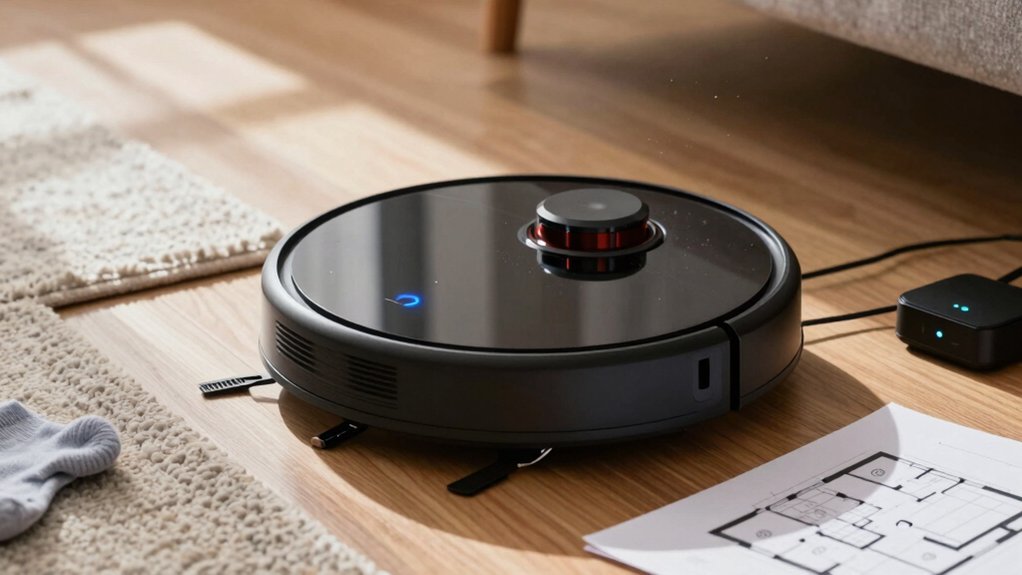
If your robot vacuum lost its map, first check the battery level, firmware/app health, and that multi-map saving is enabled. A low charge or a buggy app can drop maps.
Make sure the dock sits flush against a straight wall with clear side and front space so the robot has a stable start reference. Clean LiDAR/top sensors, cliff sensors, and wheels. Then delete the old map and run a controlled remap without moving the vacuum. More troubleshooting steps follow below.
Quick Overview
- Check battery, firmware, and app health; update firmware, avoid beta builds, charge fully, and restart both app and robot.
- Ensure dock placement against a straight wall with 50 cm side and 1 m front clearance. Keep it stationary.
- Enable and verify Multi-map Saving in the app to prevent maps being overwritten or discarded.
- Clean LiDAR, cliff sensors, IR ports, and wheels regularly (every 3–5 days in dusty/pet homes) to avoid navigation drift.
- Delete corrupted maps, remove clutter and reflective surfaces, then run a full remap without moving the robot.
Run Quick Checks to Diagnose a Lost Map (Battery, Firmware, App, Multi-Map)
WONDERING WHY YOUR ROBOT VACUUM SUDDENLY LOST ITS MAP? START BY CHECKING BATTERY STATUS: A LOW BATTERY CAN STOP MAPPING MID-RUN OR PREVENT THE UNIT FROM SAVING MAPS. PUT THE VACUUM ON THE DOCK, CONFIRM IT CHARGES FULLY, THEN TRY A SHORT REMAP.
NEXT, VERIFY FIRMWARE AND APP HEALTH: OPEN THE APP, LOOK FOR A FIRMWARE UPDATE, AND AVOID BETA BUILDS THAT MAY INTRODUCE BUGS. RESTART THE APP AND VACUUM IF THE APP SEEMS GLITCHY. INSPECT MULTI-MAP SETTINGS IN THE APP; ENSURE MULTI-MAP SAVING IS ENABLED SO THE CLEANER DOESN’T OVERWRITE OR DISCARD MAPS AUTOMATICALLY.
IF THE MAP VANISHED DURING A MAPPING ATTEMPT, RESTART THE VACUUM AND RUN A FRESH MAPPING SESSION. WATCH FOR FAILURES OR SUDDEN RETURNS TO DOCK THAT SIGNAL BATTERY OR FIRMWARE PROBLEMS. IF ISSUES PERSIST AFTER THESE CHECKS, NOTE WHAT YOU SEE (ERROR CODES, APP MESSAGES) BEFORE MOVING TO REPOSITIONING OR DEEPER TROUBLESHOOTING.
Fix the Charging Dock Position (Wall Alignment and Clearance)
How is the dock positioned against the wall? Put the charging dock flush to a straight wall so the robot has a consistent starting reference. Check wall alignment visually; avoid slanted niches or placing the dock in the middle of a room. Maintain at least 20 inches (50 cm) of side clearance and 40 inches (1 m) of front clearance to prevent obstructions from skewing initial scans.
Keep the dock stationary and secure. Don’t move it during mapping. If the base shifts, the robot can lose its map and start anew. Remove nearby furniture and clutter that might produce false readings of the robot’s home position or interfere with docking sensors.
After you relocate or adjust wall alignment, run a full mapping cycle from scratch so the vacuum can establish a correct origin and restore mapping reliability. Consistent placement, proper clearance, and a stable dock reduce mapping errors and improve long-term navigation performance.
Clean and Test Sensors and Wheels That Affect Map Accuracy
Curious whether dust or debris is sabotaging your robot’s map? Start with targeted sensor cleaning: gently wipe the LiDAR window, circular top sensor, cliff sensors, and any visible IR ports. In dusty or pet homes, do this every 3 to 5 days to prevent degraded readings. Use a soft cloth and canned air; avoid liquids that could seep in.
Next, inspect wheels and wheel wells. Hair and grit on wheels alter odometry and cause map drift, so remove tangles and blow out debris. Test wheel rotation manually and run a short cleaning mode to confirm free movement.
Watch for reflective surfaces or strong external light during testing. These can mimic sensor faults and warp maps. After cleaning and wheel maintenance, run a mapping sequence to verify improvement. If inaccuracies persist despite clean sensors and free-spinning wheels, consider a full reset and remap as the next step.
Remap Step-by-Step: Delete Old Map, Prepare Room, Create and Save Map
Ready to rebuild your robot’s map from scratch? Delete the current map in the app to begin. That clears corrupted data and resets remap basics so you can run a clean session.
Prepare the room: Remove clutter, move toys and cords, and clear reflective items that confuse sensors. Place the dock on a straight wall with adequate clearance so the robot can find and return to it reliably. This prep is essential for effective map troubleshooting.
Start a new mapping run and don’t lift or move the robot while it completes the initial scan. Let it finish the baseline pass uninterrupted. When the app prompts you to save, choose the new map. If multiple maps appear, select the correct one.
If saving fails, restart the robot and repeat the mapping. Also, verify Multi-map Saving is enabled before you create zones. These steps follow remap basics and address common map troubleshooting causes efficiently.
Prevent Future Map Loss: Placement, Reflective Surfaces, and Maintenance
Want to stop map loss before it starts? Positioning matters: follow placement considerations by setting the charging dock against a straight wall with about 20 inches (50 cm) side clearance and 40 inches (1 m) front clearance so the robot reliably detects its start point. Avoid moving or lifting the robot during a mapping run; shifts force remapping and risk map corruption.
Address reflective challenges directly. Keep floor-length mirrors, large glass panes, and high-gloss surfaces out of the mapping area or cover them: they can create warped or duplicate features that confuse LiDAR. Secure or remove loose cables and trim low-hanging fabrics or ramps that snag and alter path data.
Maintain sensors regularly. Clean LiDAR and other sensors to remove dust that degrades navigation accuracy. Inspect and clear obstacles before mapping.
If you follow these placement, reflective, and maintenance steps, the vacuum will produce more stable, reliable maps and reduce future map-loss incidents.
Frequently Asked Questions
Why Do Maps Disappear After a Firmware Update?
Firmware updates can overwrite or invalidate stored maps. This means you lose them when the new software changes data formats or resets memory.
Check release notes for causal mapping details to see what changed. If maps are critical, you can try a firmware rollback where supported; back up maps first and report the issue to support.
Be cautious: rollback may reduce features or security, so weigh risks before proceeding.
Can Virtual No-Go Zones Be Transferred Between Maps?
Yes, you can often transfer virtual zones when you do a map transfer; however, it depends on the app and firmware. Check whether the app supports map transfer or exports. Some let you migrate maps with virtual zones intact; others require re-creating zones manually.
If transfer fails, update firmware, export backups, and retry. If it is still broken, contact support with map files and device logs so they can diagnose the specific incompatibility.
Will Pet Hair Inside Sensors Cause Intermittent Mapping Errors?
Yes, pet hair and sensor fogging can cause intermittent mapping errors. You should inspect and gently clean all exposed sensors, brushes, and vents, removing hair clumps and residue.
Use compressed air or a soft brush; avoid liquids that cause fogging. After cleaning, reboot the vacuum and run a short mapping cycle to confirm stability. If issues persist, check for blocked vents or contact support for sensor recalibration or replacement.
How Do Multiple Users’ App Accounts Affect Saved Maps?
Multiple user accounts can change map ownership and how user accounts affect saved maps. One account usually owns the map and controls map permissions; these permissions differ across accounts. You’ll see cross device data sharing only if the owner enables it or shares maps. Otherwise, other users get limited or read-only access.
Check the app’s sharing settings. Confirm which account created the map and adjust permissions so each device sees the correct, updated map.
Can Using Third-Party Accessories Void Mapping Features?
Yes, using third-party accessories can void mapping features if the manufacturer says so. You’ll want to check warranty and support terms. Sensors or brushes that differ can interfere with navigation and mapping features.
If mapping degrades, remove the accessory and restore defaults; then recalibrate. Keep receipts and document issues before contacting support; that helps if you need warranty service or argue for an exception.
Conclusion
You’ve run checks, fixed the dock, cleaned sensors and wheels, and remapped: good. Keep the dock against a stable wall with clearances. Park the robot on charge before saving maps. Avoid reflective surfaces or big rearrangements.
Update firmware; enable multi-map if needed. Schedule regular sensor and brush cleaning. If maps still disappear, contact support with logs. Do these steps routinely and you’ll minimize lost-map headaches going forward.