Multi-Floor Mapping on Robot Vacuums Explained
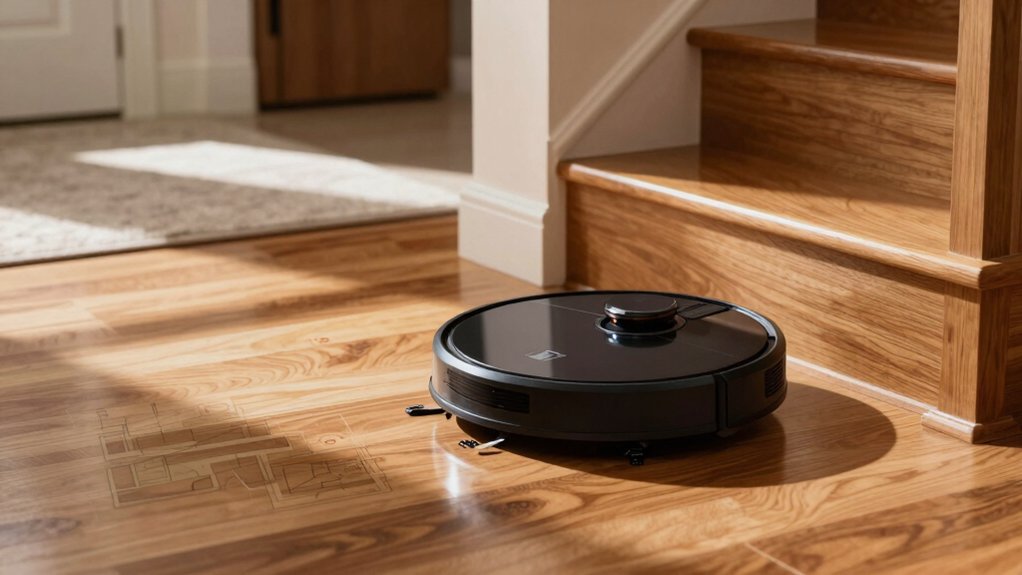
Multi-floor mapping lets your robot create and save distinct, labeled maps for each level, so it won’t remap every run. It uses SLAM to fuse LiDAR, dToF, and cameras into obstacle-aware layouts and generalized room shapes for efficient paths. The vacuum localizes by matching live landmarks to stored floor files. It auto-switches when confidence is high or lets you select manually, and keeps editable room boundaries and no-go zones.
Keep going to learn setup steps, troubleshooting, and best practices.
Quick Overview
- Multi-floor mapping lets a robot vacuum create, save, and automatically switch distinct maps for different home levels.
- SLAM fuses LiDAR, dToF, cameras, and AI sensors to build obstacle-aware, room-shaped maps for efficient coverage.
- Each floor map is saved as a labeled file (e.g., Upstairs); this enables quick localization and map switching.
- Auto-switching uses live landmark matching and confidence thresholds. Manual map selection is available if needed.
- You can edit room names and no-go zones without remapping. Remap when layout changes or localization fails.
What Is Multi-Floor Mapping and How It Works
How does multi-floor mapping let your robot vacuum handle different levels of a home? You rely on multi-floor mapping to create, store, and automatically switch distinct floor maps so the robot applies appropriate cleaning plans per level. It builds each map quickly, often within minutes, and saves them as labeled floor files rather than re-mapping every run. You’ll benefit from map generalization that abstracts room shapes and key features, letting path planners operate efficiently without storing excessive detail.
You use secondary navigation when transitioning between floors. Manual triggers or docking cues tell the robot to load the correct map. SLAM fuses real-time sensor data to produce obstacle-aware layouts that guide optimal coverage. When layouts change, the system supports remapping and updates generalized maps so cleaning patterns adapt.
The overall result is floor-specific routing, reduced setup time, and predictable performance across multiple levels without constant user intervention.
Sensors and Tech That Make Multi-Floor Mapping Reliable
Which sensors actually make multi-floor mapping reliable? You rely on a sensor suite that fuses LiDAR, dToF, cameras, and AI-enabled modules to maintain precise, floor-specific maps with robust mapping integration and proven hardware compatibility. Real-time fusion preserves map fidelity across levels and changing layouts.
LiDAR + dToF for accurate distance grids and 3D contours. Dual 3D structured light (DLIDAR) for depth and obstacle profiling. Cameras + ToF for visual landmarks and automatic recognition. AI-enabled sensors (DirtSense, Adaptive CleanMind) for adaptive path planning. Redundant threshold/stair detection for safe transitions.
You’ll get consistent 3D representations because DLIDAR and structured light distinguish walls, furniture, and stair edges. Cameras and ToF systems provide landmark cues that let the robot recognize floors without manual input. AI modules analyze mess types and optimize routes while preserving map integrity. Multiple, redundant sensors ensure safe navigation in varied lighting and support reliable remapping when rooms change.
How Robots Store, Recognize, and Switch Floor Maps
Curious how your robot knows which map to use? You store distinct floor maps in its memory. The robot saves lidar/camera/dToF scans into labeled files (Basement, Upstairs). During localization, it matches live landmarks and floor-specific features to those files, minimizing false positives in recognition.
If confidence is high, it auto-switches; otherwise, the app prompts manual selection.
| Stored Map | Purpose |
|---|---|
| Basement | Named map, rooms, no-go zones |
| Upstairs | Named map, rooms, no-go zones |
| Garage | Named map, rooms, no-go zones |
| Auto-Switch | Landmark + pose matching |
You can edit room boundaries and set per-floor no-go zones without remapping. Automatic switching runs during self-positioning and reduces navigation errors. However, frequent remapping or unnecessary test runs can increase battery wear. For robust performance, rely on saved maps and clear unique landmarks per floor so the robot distinguishes levels reliably without creating false positives.
How to Map Each Floor : Step by Step (Best Practices)
Ready to map each floor efficiently? Start on the ground floor with a full mapping run: place the dock on that level, clear obstacles, and let the robot complete a thorough pass so the first-floor map is accurate.
Physically move the robot to each upper level; run a quick mapping pass, then save and name the map (e.g., Upstairs). Enable multi floor management in the app; create separate maps and switch via map selection rather than remapping every time.
When layouts change, re-run mapping for the affected floor and update room names. Use no-go zones and room labeling to optimize cleaning paths and prevent cross-floor contamination of cleaning plans.
- Start full mapping on ground floor with dock present.
- Move robot between floors and run quick pass.
- Save and name each floor map immediately.
- Enable multi floor management and switch maps in-app.
- Update maps, room labels, and no-go zones after layout changes.
Common Problems, Fixes, and When to Re-Map or Upgrade
Because mapping can fail for many reasons, you should inspect sensors, placement, and saved maps before assuming a hardware fault. If the vacuum misses a floor, restart mapping on that floor and confirm sensors and dock aren’t obstructed. Check floor naming and map naming conventions so you load the correct plan.
When layouts change, such as furniture moved or rooms reconfigured, re-map only the affected floor to update routes and avoid repeated cleaning along old paths. If the robot repeatedly skips areas or revisits zones, delete stale maps and perform a fresh remapping to generate an accurate floor layout.
Use multi-floor map saving (models vary, often up to five maps), and don’t move the robot or dock while saving to prevent map loss. Finally, if mapping instability or automatic floor switching fails persist despite troubleshooting, upgrade or replace the unit. Insufficient memory or limited navigation sensors justify a higher-tier model for reliable multi-floor performance.
Frequently Asked Questions
Can a Robot Vacuum Map Floors With Different Ceiling Heights?
Yes, you can. You’ll find most modern robot vacuums with multi floor mapping handle different ceilings by relying on floor-level sensors (LiDAR, SLAM, or visual odometry) rather than ceiling height.
You’ll need to create separate maps per floor; sometimes, you must disable ceiling-following features. Calibration and firmware updates improve accuracy. For complex vertical variations, pick a model with robust localization and map management so transitions and obstacles remain correctly represented across different ceilings.
Will Pets or Children Accidentally Erase Saved Floor Maps?
Usually no, pets or kids won’t erase saved maps if you set permissions and security properly. You’ll enable map retention by locking the app, creating separate user accounts, and disabling physical reset buttons if possible.
Keep the robot out of reach during play. Update firmware for safety patches and use PINs or admin-only controls to prevent accidental deletes. These steps protect pets’ safety while preserving your floor plans reliably.
Do Multi-Floor Maps Work Without Wi‑Fi or Cloud Connection?
Yes, many robots keep multi-floor autonomy and can do offline mapping without cloud. You’ll still get local SLAM, map storage, and floor recognition on-device. Therefore, maps survive without Wi-Fi.
Some features, such as cloud backups, remote app control, and voice integration, won’t work offline. Check specs: on-device processing, internal memory, and firmware support determine whether the robot truly runs autonomous, offline multi-floor mapping and navigation.
Can a Robot Carry Maps Between Different Homes?
Yes, many robots can carry maps between different homes if they support maps portability and multi home mapping. You’ll export or let the robot retain distinct map files tied to location IDs. The robot loads the right map by recognizing sensors, beacons, or manual selection.
Keep firmware updated, back up maps locally or to cloud when available, and verify privacy settings to control where map data is stored and transferred.
Are Map Edits Synced Across Multiple User Accounts?
It depends: map edits aren’t automatically synced across multiple user accounts unless the manufacturer explicitly supports shared profiles.
You’ll want to check the app’s permissions and map editing scope. Some systems limit edits to the account that created them to protect training data privacy.
Enterprise or family-sharing features may propagate changes. Verify cloud sync settings, access controls, and audit logs to confirm who can edit, view, or inherit map updates.
Conclusion
You’ve learned how multi-floor mapping lets a robot vacuum build, store, and recall separate floor plans using sensors like LiDAR, visual SLAM, and IMUs. Now apply best practices: map each level under consistent lighting, keep doors open for access, and name maps clearly.
Troubleshoot by checking sensors, recalibrating, or remapping when layout or furniture changes. Upgrade if recognition fails or navigation slows. Newer models have faster processors and better SLAM for reliability.